




Zapier
Connect Positive User to the rest of your tool stack without writing a line of code. With Zapier, you can automatically sync contacts from form tools, trigger events from external platforms, update deals from your CRM, and push Positive User data to your favorite apps. Pick a trigger, pick an action, hit publish.
Automate Everything Between Positive User and Your Tools

Two-Way Data Flow
Zapier works in both directions. Push data into Positive User when something happens in another app (new form submission, new CRM deal, calendar event), or trigger actions in external tools when something changes in Positive User (new user created, attribute updated, event recorded).
No-Code Workflow Builder
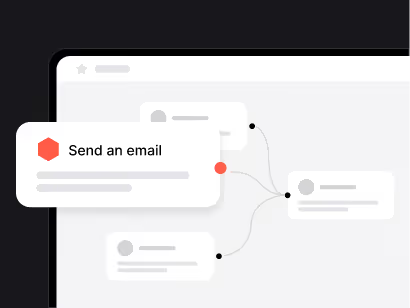
Build automations visually in Zapier's interface. Choose a trigger, map your data fields, add filters or conditions, and publish. No developers, no API calls, no maintenance: just workflows that run automatically in the background.

Sync Contacts, Events, Deals, and Companies
The Positive User Zapier integration covers your core data objects. Create or update contacts and companies, fire custom events, sync deals and activities, all mapped to standard or custom attributes in your Positive User account.
Three simple steps to get started
Connect Your Positive User Account
Log into Zapier, create a new Zap, and search for "User.com." Authorize the connection using your Positive User admin credentials. Make sure you have admin rights: only admins can grant Zapier access to the account.
Choose Your Trigger and Action
Select what starts the workflow (the trigger) and what happens next (the action). For example: "When a new user is created in Positive User → Add a row in Google Sheets." Map data fields between the two apps using Zapier's visual editor.
Test and Activate
Run a test to verify data flows correctly between both platforms. Once confirmed, turn on your Zap and it runs automatically in the background. Monitor execution history in Zapier's dashboard.

Popular implementation guides
- How to Integrate With Zapier: Complete walkthrough of setting up your first Zap with Positive User: triggers, actions, field mapping, and testing. Read Guide →
- Custom Zapier Integration: Advanced guide for sending Positive User data to Zapier using automation webhooks and custom triggers. View Tutorial →
- Connecting Calendar via Zapier: Sync calendar events from Outlook, Google Calendar, or other providers into Positive User activities using Zapier. View Tutorial →
- What Are Events and How to Create Them: Before using the "Create Event" action in Zapier, events must exist in Positive User. Learn how to define events and their attributes. View Tutorial →
- Positive User on Zapier Marketplace: Browse the User.com app page on Zapier for ready-made templates, popular Zaps, and community workflows. View on Zapier →
- REST API Documentation: For more advanced integrations beyond Zapier's capabilities, use the Positive User REST API for full programmatic control. View API Docs →
Frequently Asked Questions
Do I need coding skills to use this integration?
No. Zapier's visual interface handles everything: choosing triggers and actions, mapping data fields, and setting conditions. No code required.
Do I need admin access to connect Positive User?
Yes. Only Positive User accounts with administrative rights can authorize the Zapier connection. This ensures secure access to your app data.
What triggers are available in Positive User?
You can trigger Zaps when a new user, company, deal, or activity is created, when a custom event is recorded for a user, or when a tag is added to a contact. All standard and custom attributes are supported as filter conditions.
What actions can I perform in Positive User from Zapier?
You can create or update users, companies, deals, and activities. You can also fire custom events for specific users. Actions match existing records by email, user ID, or custom_id to avoid creating duplicates.
What happens if a contact already exists?
The "Create/Update User" action matches by email or user ID. If a match is found, the existing contact is updated with new data. If no match is found, a new contact is created.
Can I use filters and conditions in my Zaps?
Yes. Zapier supports filters, paths, and multi-step workflows. You can route data conditionally, for example, only create a Positive User contact if the form submission includes a business email or if the lead score is above a threshold.
Why can't I find my event in the Zapier action form?
Events must exist in your Positive User app before they appear in Zapier. Make sure the event has been triggered at least once or manually created in Settings > User data & events > Events.
I get a 404 error when testing — what's wrong?
This usually means Zapier's test data doesn't match an existing user in your database. Make sure the email or user ID used in the test belongs to an actual contact in Positive User. Using a "Create/Update User" action first will create the contact before subsequent steps try to reference it.
Is there a limit to how many Zaps I can run?
Zapier's free plan includes a limited number of tasks per month. Paid plans offer higher volumes. There are no specific limits on the Positive User side, but your plan's contact and event limits still apply.
Can I combine Zapier with the Positive User API?
Yes. Use Zapier for simple, no-code workflows and the REST API for advanced or high-volume integrations. Both can work together on the same Positive User account.